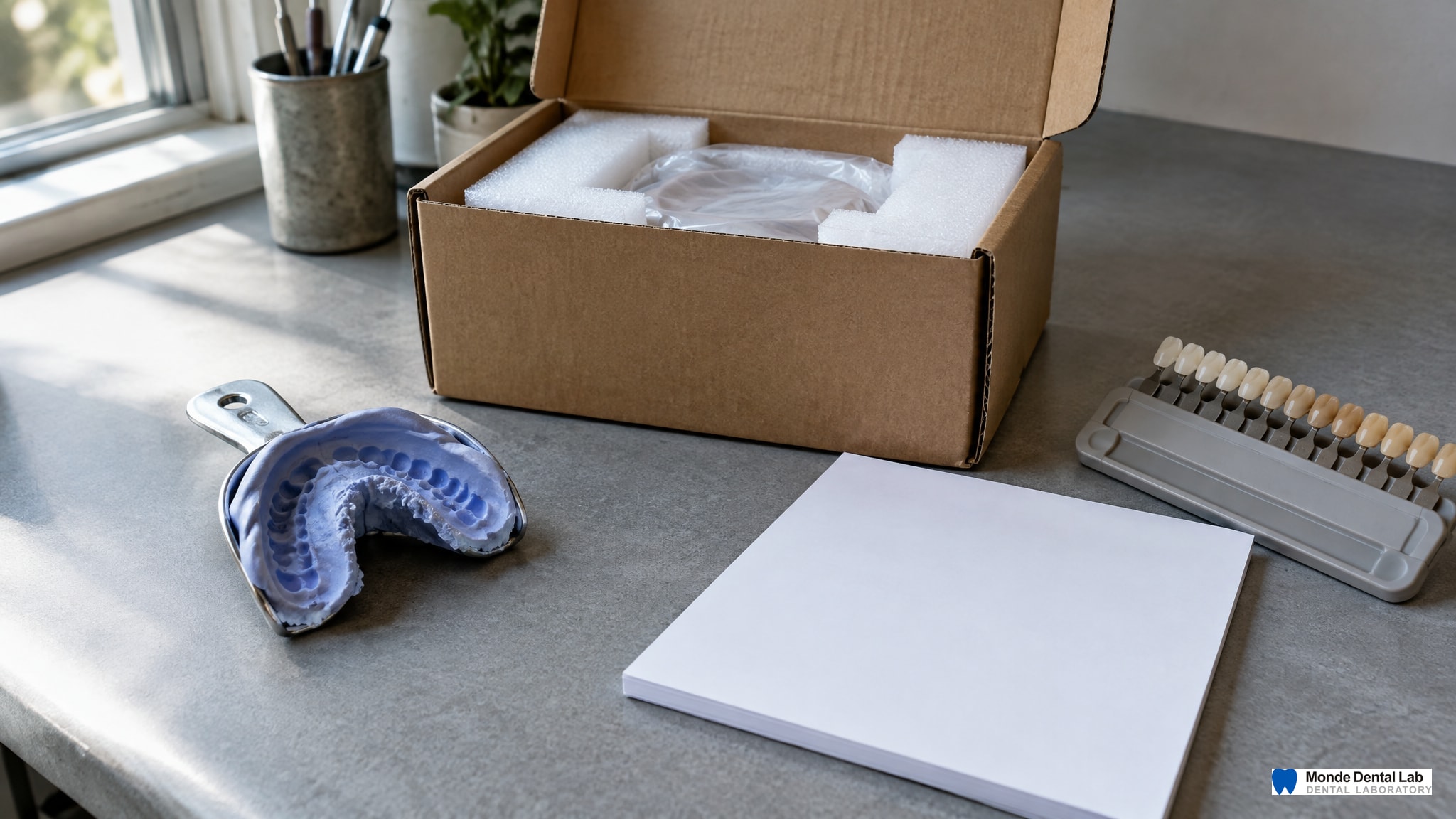
A practice can't send a crown or bridge to an outside lab until the lab knows who is sending it. Dental lab account registration is that first step at Monde Dental Lab. It takes a single sitting when the practice has its details gathered, and it takes noticeably longer when someone has to hunt for a license number halfway through.
This article covers what to collect before opening the form, the order of the registration steps, what affects setup time, and where stalled sign-ups usually go wrong. Practices still weighing whether to use an outside lab can start with the outsourced dental lab services overview and return here when they are ready to register.
What Opening a Dental Lab Account Covers for a Practice
A practice account is the login a dental office uses to submit cases, ship them to the lab, and check pricing online. Monde Dental Lab partners with dental practices as an outside production lab, and the account is how a practice reaches that partnership without phone calls or paper forms for each case.
The person who manages lab orders at the practice should be the one who opens it. That is usually an office manager, a lead assistant, or the dentist in a small practice. They know which addresses receive shipments, who approves invoices, and which inbox the team actually reads.
Registration is available through the registration option on the Monde site, and the account is built for dental practices. A patient, a supplier, or another laboratory has no use for it.
An account does not send anything by itself. It gives the practice access, and each case still goes through the case form and the shipping steps described later in this article.
Dental Lab Sign-Up Checklist: Documents and Credentials
Registration forms of this kind usually ask for the same core details, and the form moves quickly when they are all on the desk beforehand. Think of the list below as a pre-flight check: the form itself should only ever be a matter of typing what has already been collected.
A typical case shows the difference. One practice gathers its legal name, its office and shipping addresses, the billing contact, and the dentist's license details before opening the form, and it finishes without leaving the screen. Another starts blank, stops partway through to look up a license number, and returns to the form an hour later with a half-finished session.
Practice and Billing Details
These fields identify the business and tell the lab where to send cases back and where to send invoices. Have each of the following ready:
- Legal practice name. Use the name as it appears on the practice's registration or tax records, not the name on the sign out front.
- Office address. The street address of the practice.
- Shipping address. The address where finished work should arrive. It is often the same as the office address, but it can differ for multi-site groups or practices that receive deliveries at a separate entrance.
- Billing contact. A name, email address, and phone number for whoever handles invoices.
- Tax identifier. US practices should have their EIN at hand. Practices in France or Germany should have their VAT number or national tax number. The form shows which of these it asks for.
Names and addresses should be copied from one source. Typing the practice name one way in the first section and another way in the billing section is a common way to create a mismatch that someone later has to untangle.
Dentist Credentials and Login Details
The second group of items identifies the licensed clinician and the staff member who will use the account.
- Dentist's name and license or registration number. Enter the number in the format the dentist's state or country issues. A US state license number and a French or German professional registration number look nothing alike, so copy them exactly from the certificate or the issuing body's record.
- Name and title of the person placing orders. This is the day-to-day account user, such as the office manager or a clinical assistant.
- A shared inbox for the login. Use an address such as an office or lab-orders mailbox that more than one staff member watches.
- Any documents the account terms request. Some accounts ask for a license upload or a patient-data agreement, such as a HIPAA business associate agreement for US practices. If the terms ask for one, have the file scanned and the signer identified before starting.
The shared inbox matters more than it looks. Consider a practice that registers under a front-desk employee's personal email. When that employee leaves, account messages go unread until someone rebuilds the login. A monitored inbox set at the start closes that gap.
Registering for a Dental Lab Account, Step by Step
With the checklist complete, the form itself is short work. The steps below follow the order a practice meets them, and the on-screen form is the final authority if a label or step differs.
How to Register a Dental Practice Account
- Open the registration option on the Monde Dental Lab site.
- Choose the practice account type first, if the form offers a choice of account types.
- Enter the legal practice name, office address, and shipping address.
- Add the billing contact and the tax identifier the form asks for.
- Enter the dentist's name and license or registration number.
- Add the name and title of the person who will place orders.
- Enter the shared inbox as the login email.
- Upload or accept anything the account terms require, then submit.
Before submitting, read the entries once against the source documents. A transposed digit in a license number is easy to make and easy to catch on a second look.
Setting a Login and Confirming Access
The login usually pairs an email address with a password. Use the shared inbox from the checklist as the email, and choose a password the office can store in its usual password manager rather than on a sticky note.
After submitting, watch that inbox for a confirmation message from the form. If one arrives, follow it to confirm the address. The account is ready for a first case once the login works and the site lets the practice into its account area. If the account is still waiting on a review, the practice will see that rather than the account area.
How Long Setup Takes for a New Dental Lab Account
A practice with its details ready can finish the form in a single sitting. The part of setup time that varies is any review that happens before the account is active.
Time to Complete the Form
The form itself takes as long as the practice's preparation allows. Everything on it comes from records the office already holds, so the work is copying, not researching.
Delays almost always come from missing information. A license number locked in a dentist's desk, or a tax number only the bookkeeper knows, can turn a short task into a split one.
Practices with several decision-makers should also settle who signs any agreement before starting. Waiting for a signature costs more time than typing every field.
Time Before the Account Is Active
Some accounts become usable right after the form is submitted and confirmed. Others may pass through a review first, and that is the step that varies from practice to practice. The live flow tells the practice which situation applies, so there is no need to guess from outside.
A practice can shorten its own wait by submitting complete, consistent details. A review has less to question when the legal name, addresses, and license number all match across the form.
Registration should be finished before the first case is due. A practice that opens its account on the same day it needs a crown back has left itself no margin.
Common Registration Problems and How to Avoid Them
Stalled registrations usually come down to three causes, and each has a simple fix.
Incomplete fields come first. A form that is missing a license number or a billing contact cannot move forward, so the fix is to complete the pre-registration checklist above before opening the form rather than during it.
Mismatched names and addresses come second. When the legal name in one section differs from the name in another, or the shipping address is typed two ways, the record looks inconsistent. Copy each detail from a single source and paste it everywhere it appears.
An email address nobody checks comes third. Confirmation messages and account notices go to the login address, and if the person who owns that mailbox is away or gone, they sit unread. A shared inbox that more than one person watches prevents this.
None of these problems come from the lab's side. They are all preventable by the practice before it clicks submit.
Submitting Your First Case Once the Account Is Active
Once the account is active, the first case is submitted online and shipped by following the lab's shipping instructions. The full walkthrough lives in the step-by-step case submission guide, so this article does not repeat it. When the practice is ready, it can send your first case through the Send A Case page.
Checks Before the First Send
Two confirmations come before the case form. First, check the lab's pricing for the restoration type, such as a crown or a bridge, so the practice knows what the case will cost before it leaves the office. Pricing is available online through the account.
Second, review the shipping instructions for practices so the case is packed and sent the way the lab expects. A first shipment that follows those steps avoids delays caused by packaging or paperwork.
Pricing and shipping are the only checks needed here. Everything else is on the case form.
Getting Help If Registration Stalls
A stalled form is rarely a dead end, but the lab can only help quickly when it knows exactly where the problem sits. Before reaching out, the practice should have three things ready: the practice name, the login email used, and the step where the form stopped.
Those three details let the team find the registration and see what happened without a round of follow-up questions. A screenshot of any error message adds to that, though the three basics are enough to start.
Practices with their details ready can open the account now through the site's registration option, then send the first case through the Send A Case page once the account is active. If anything stalls along the way, contact the lab team through the Contact page with the practice name, the login email, and the step where the form stopped.
Frequently asked questions
Who at a dental practice should open the lab account?
The person who manages lab orders should open it, usually an office manager, a lead assistant, or the dentist in a small practice. That person knows the shipping address, the billing contact, and which inbox the team monitors. The account is for dental practices, so patients and other businesses have no use for it.
What do I need before starting dental lab account registration?
Have the practice's legal name, its office and shipping addresses, a billing contact, and the licensed dentist's name and license or registration number. US practices should add their EIN, and practices in France or Germany should add their VAT or national tax number. If the account terms ask for a license upload or a patient-data agreement, have those files ready too.
Should the login be a personal email or a shared inbox?
Use a shared inbox that more than one staff member watches. A personal address means account messages go unread when that person is away or leaves. A shared inbox set at registration avoids rebuilding the login later.
How long does it take to open a new dental lab account?
A practice with its details ready can finish the form in a single sitting. The part that varies is any review before the account is active, and the live flow shows whether one applies. Registering before the first case is due leaves room for that step.
What should I do if the registration form stops partway through?
Check for blank fields, mismatched names or addresses between sections, and a login email no one monitors, since those cause most stalls. If the form still won't move, contact the lab team with the practice name, the login email, and the step where it stopped.